The Synology Spreadsheet API Is a Container, Not an API Endpoint
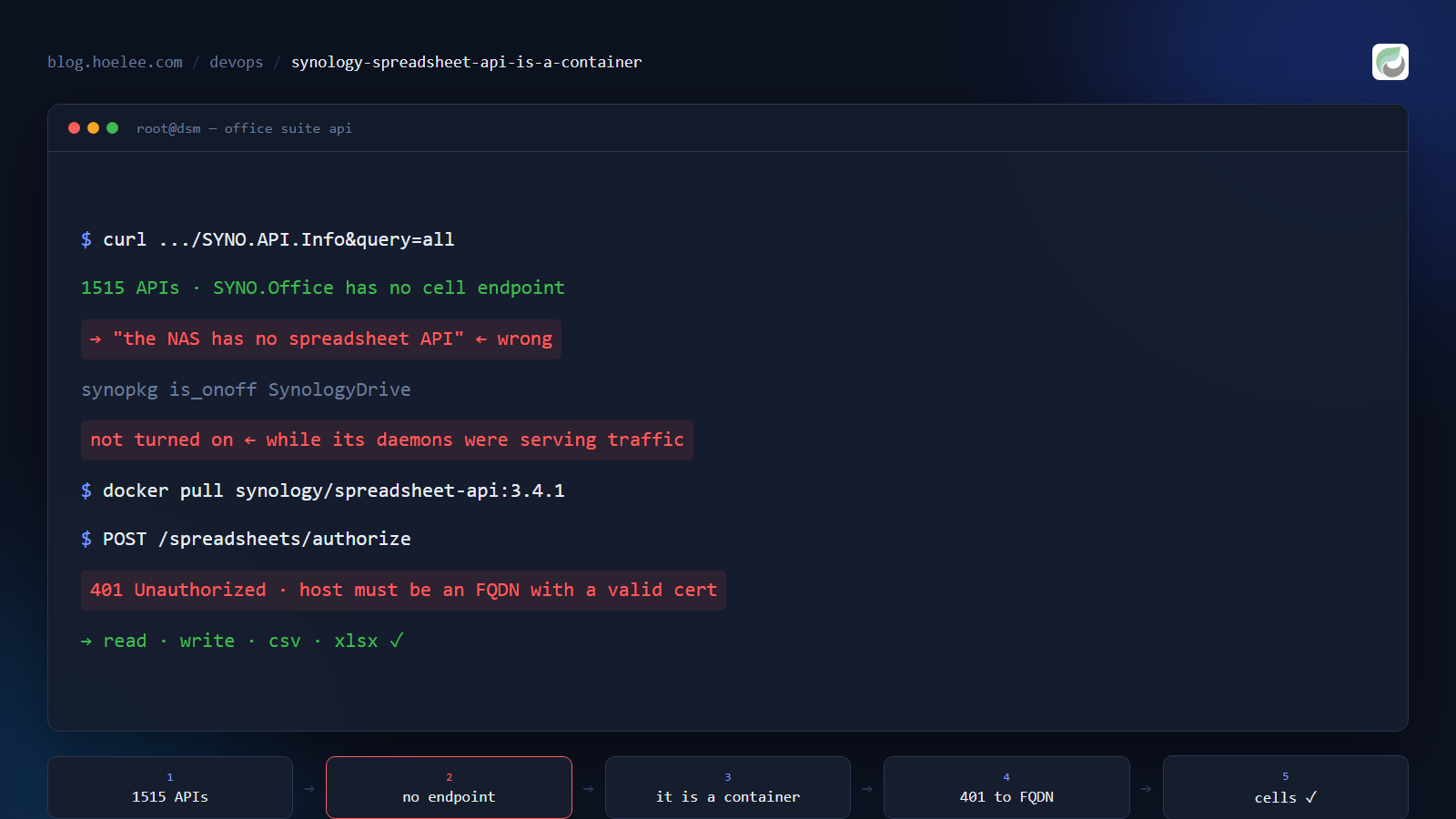
I wanted something ordinary: read a cell from a spreadsheet on my NAS, write a cell back, and have a chart come out the other end — without opening Excel, and without shipping my company’s numbers to a cloud API.
I run a Synology DS1821+ with Synology Office (the Spreadsheet package) installed, so this looked like a solved problem. It is a solved problem. It just took four separate false signals to find the actual solution, and one of my conclusions along the way was flatly wrong in a way worth writing down.
Why this matters
If you self-host, you will eventually need a service to talk to another service on the same box. The failure modes in this post are not Synology-specific — they are the general shape of “the vendor ships the thing, but not where you’d look for it”:
- A missing entry in an API list is not proof the API doesn’t exist. I enumerated 1,515 APIs and concluded the feature was absent. It was a container.
- Two of the diagnostics I trusted were lying.
synopkgreported a running package as “not turned on”, andpsshowed me an empty machine that was serving production traffic. - The best-scoped credential failure looks like your fault. A
401with a verified-correct password is almost always about where you sent the request, not what you sent. - The permission model bites after authentication. You can log in perfectly and still be told
403on every file, because of where the file lives.
If any of that sounds familiar, the second half of this post is the working setup.
What the docs say, and why that sent me the wrong way
Synology advertises “Office Suite APIs” — REST APIs for Drive, Spreadsheet, MailPlus and Calendar. The marketing page lists exactly what I wanted, verbatim:
- “Read and write cell styles within a range.”
- “Add, rename, delete, and export sheets as CSV files.”
- “Create, retrieve, export, and delete spreadsheet. Perform batch updates…”
The documentation itself sits behind a Synology Account login, which is a normal thing to hit and not a scandal — but it means the first thing a search engine finds is the promise, not the contract.
So I went looking on my own NAS. DSM exposes a gateway API catalogue, and you can just ask it what exists:
curl -s "http://192.168.1.1:8081/webapi/query.cgi?api=SYNO.API.Info&query=all" \
  | python -c "import json,sys; d=json.load(sys.stdin)['data']; print(len(d), 'APIs')"
1515 APIsFifteen hundred and fifteen. Among them, SYNO.Office.* appears — but only for snapshots and a “recently used formulas” list:
SYNO.Office.Sheet.Snapshot
SYNO.Office.Sheet.Snapshot.History
SYNO.Office.Sheet.MruFc
No values endpoint. No styles endpoint. No write endpoint. I filtered the whole catalogue for anything mentioning sheets or cells and came up empty, and I concluded — and told the person I was building this for — that the NAS had no cell-level spreadsheet API.
That conclusion was wrong. I want to be precise about why it was wrong, because the reasoning error is the reusable part: I treated one discovery surface as exhaustive. The gateway catalogue lists APIs served by DSM’s own web gateway. The Office Suite API is not served by that gateway. It is a separate service, published as a separate artifact, and therefore invisible to the query I ran.
Trap 1: the tool that says a running service isn’t installed
Before finding the real answer, I spent a while convinced the software wasn’t even running. Two commands made that look true.
The first was Synology’s own package-state query:
sudo synopkg is_onoff SynologyDrive
sudo synopkg is_onoff Spreadsheet
SynologyDrive isn't turned on, [262]
Spreadsheet isn't turned on, [262]Meanwhile both packages were plainly serving requests. SynologyDrive had status=enabled in its own state file, and the Office daemons were in the process table — a task daemon, a connection pooler running under an office user account, and gateway workers. is_onoff was simply not a reliable answer on this DSM build.
The second command was worse because it was my own mistake:
ps w | grep -iE "office|drive|pgbouncer"(no output)That looks like a dead system. It isn’t. On DSM, ps without sudo shows you only your own processes. Re-run it as root and the picture inverts:
sudo ps aux | grep -E "office|pgbouncer|synoscgi" | grep -v grepThere they all are. I had “proven” the stack was down twice, using two commands that couldn’t have shown me otherwise:
If you take one habit from this post: when a diagnostic says “nothing is running”, check whether the diagnostic had the privileges to see anything at all.
Trap 2: the container with no startup error message
The actual answer, once I stopped believing my own evidence, was on Docker Hub: synology/spreadsheet-api. Not part of the Office package, not a gateway endpoint. Its own description is unambiguous:
“Spreadsheet API is not part of the Office package. This image provides a proxy service between clients and DSM. Each worker is dedicated to a single user and a single spreadsheet.”
The compatibility table matches image tags to Office versions, which is the first thing to check because the pairing is not optional:
| Docker image tag | Required Synology Office |
|---|---|
3.4.1 | 3.7.0 or higher |
3.3.2 | older |
Synology also warns against co-locating it with Office, since each worker loads whole spreadsheets into memory. I ran it on the same DSM anyway and capped it, which is a deliberate trade rather than a recommendation.
Then I ran it and it died immediately with this:
/app/dist/index.js:424
}`;var ot=UD(function(){return Ht($,qe+"return "+Ee).apply(e,H)});...
A minified JavaScript blob — the least useful class of error message there is. The cause, once found, was mundane: AUTH_SECRET is required and has no default. It signs the session tokens. Without it the service cannot start and cannot tell you why.
The reliable way to read a container’s actual requirements, rather than its startup noise, is to ask the bundle directly:
docker run --rm --entrypoint grep synology/spreadsheet-api:3.4.1 \
-ohE '.{0,80}process\.env\.PORT.{0,80}' /app/dist/index.jsserverPort: parseInt(process.env.PORT) || 3e3,
serverHost: process.env.HOST || "0.0.0.0",
workerTimeout: parseInt(process.env.WORKER_TIMEOUT) || 600*1e3,That gives you the config contract in one line: AUTH_SECRET to sign tokens, PORT defaulting to 3000, HOST to 0.0.0.0, workers recycled after ten minutes. It also ships its own OpenAPI spec and a Swagger UI, which I’ll come back to.
Trap 3: a 401 while the password is provably correct
With the container running, authentication became the next wall. Here is the request, and here is what it returned:
curl -s -X POST http://192.168.1.1:8791/spreadsheets/authorize \
  -H 'Content-Type: application/json' \
-d '{"username":"<service-account>","password":"<password>","host":"192.168.1.1:5001","protocol":"https"}'{"error":"Unauthorized"}401 Unauthorized with a password I had just used to sign into DSM. The natural reading — wrong password, wrong account — is a dead end, and I went down it: retyped the password, tried the account on the DSM login page (it worked), tried the HTTP port instead of HTTPS (same 401).
The actual problem was the host field. The service asks you which DSM it should authenticate against, then does its own TLS handshake with that host. I had given it a bare IP address, and the certificate presented on that name doesn’t match the address, so the handshake failed — and the proxy reports a failed handshake as Unauthorized, exactly like a bad password would.
Switching to a hostname with a valid certificate fixed it instantly:
curl -s -X POST http://192.168.1.1:8791/spreadsheets/authorize \
  -H 'Content-Type: application/json' \
-d '{"username":"<service-account>","password":"<password>","host":"cloud.example.com","protocol":"https"}'{"token":"eyJhbGciOi...","host":"cloud.example.com"}If your Synology API login returns 401 and you’re sure the password is right, check the
host: it must be a name whose certificate the container accepts. A bare LAN IP is not that.
The token it returns is a JWT, valid for 28 days, tied to a DSM session — so it dies if DSM restarts or the account is forcibly logged out. Treat a sudden 401 mid-integration as “re-authorize”, not “credentials changed”.
Trap 4: 2FA cannot ever authenticate
This is the one that would waste the most time if you didn’t know it in advance, so here it is plainly: the sign-in schema has no one-time-code field.
AuthorizationBody:
  properties:
    username: {type: string}
    password: {type: string}
    host:     {type: string}
    protocol: {type: string}
No OTP, no app-password, no token exchange. If the account has two-factor authentication enabled, this API will return 401 forever, with the correct password, on every host. The only workable arrangement is a dedicated service account with 2FA off, scoped to the folders it needs — which is better practice anyway, and is what I should have started with instead of testing against my own admin account first.
The permissions trap, after you’re in
Authentication is not authorization. Once my service account could log in, every call against the spreadsheet I actually cared about returned:
{"statusCode":403,"code":"403","error":"Forbidden","message":"Permission denied"}Read that carefully, because it is informative: 403 Permission denied means the file exists and you may not have it. A bad ID returns something different:
{"statusCode":404,"code":"404","error":"Not Found","message":"Spreadsheet not found"}Two different failures, two different fixes, and conflating them costs an hour. Mine was a location problem: the spreadsheet had been created in Synology Drive’s personal My Drive, which on disk is /volume1/homes/<user>/Drive/Document/…. A personal home directory is not reachable by another DSM account — not by permission settings, not by shared-folder tricks, because it isn’t in a shared folder at all. The fix is to move the file into a shared folder and grant Read/Write there, or to Drive-share the specific file to the service account with edit rights.
The fix: the whole working setup
The container, configured with a real secret and a memory cap:
services:
  spreadsheet-api:
    image: synology/spreadsheet-api:3.4.1
    container_name: spreadsheet-api
    restart: always
    environment:
      AUTH_SECRET: "<long-random-string>"
      PORT: "3000"
      HOST: "0.0.0.0"
    ports:
      - "8791:3000"
    mem_limit: 2g
One DSM-specific note: omit cpus: from any compose file on DSM. Its kernel has no CPU CFS scheduler, so the key is silently ignored — you get the illusion of a CPU limit and no limit.
Then the API works, and the shape is pleasant. Sign in, create or address a spreadsheet, read and write ranges:
TOKEN=$(curl -s -X POST http://192.168.1.1:8791/spreadsheets/authorize \
  -H 'Content-Type: application/json' \
  -d '{"username":"<acct>","password":"<pw>","host":"cloud.example.com","protocol":"https"}' \
  | python -c "import json,sys; print(json.load(sys.stdin)['token'])")

# read a range (sheet-qualified A1 notation)
curl -s -H "Authorization: Bearer $TOKEN" \
  "http://192.168.1.1:8791/spreadsheets/<id>/values/Sheet1!A1:C4"

# write a range, formulas included
curl -s -X PUT -H "Authorization: Bearer $TOKEN" -H 'Content-Type: application/json' \
  -d '{"values": [["Item","Qty"],["Widget",12],["Gadget",7],["Total","=SUM(B2:B3)"]]}' \
  "http://192.168.1.1:8791/spreadsheets/<id>/values/Sheet1!A1:B4"
Two details I did not expect, both in my favour:
- The spreadsheet ID comes from the Office URL. A spreadsheet at
…/oo/r/<spreadsheetId>— including one behind a share link, which redirects into exactly that path — is addressable by putting that segment in the API call. - Office computes the formulas, not you. Exporting a sheet as CSV returned the evaluated results of
=SUM(B2:B3)and=SUMPRODUCT(B2:B3,C2:C3)— formulas I never evaluated client-side. That’s the whole reason to use this API instead of parsing a file yourself: you inherit Synology’s own calculation engine.
There is one real gap worth stating: there is no list endpoint. The spec declares a “Statistics” tag but serves no route for it (/statistics → 404 Route not found), and nothing else enumerates spreadsheets. You must already know the ID from the document’s URL. Fine for automation you set up on purpose; useless if you wanted to browse.
Getting a chart out the other end
Reading cells was half the job; the original ask included charts. The same API can hand you a real workbook:
curl -s -H "Authorization: Bearer $TOKEN" \
  "http://192.168.1.1:8791/spreadsheets/<id>/xlsx" -o export.xlsx
That returns a valid .xlsx — PK magic, opens in anything. From there my own service (a small FastAPI container with LibreOffice inside it for formula evaluation and matplotlib for rendering) reads the ranges and produces PNG charts and dashboards, so the pipeline runs end to end without Excel and without any cloud dependency:
Synology Office → spreadsheet-api → .xlsx export → chart renderer → PNGWhat I’d do differently
- Check Docker Hub before concluding a Synology feature doesn’t exist. I burned real time proving a negative from an API list that could not have contained the answer.
synology/*on Docker Hub was one search away. - Start with a dedicated, non-2FA service account scoped to one shared folder. I tested with an admin account first, which is how I met the 2FA wall and the
403wall in the same hour. - When a diagnostic says “nothing is running”, check its privileges.
pswithout root on DSM is not a process list, it’s a list of your own processes, and it will happily let you conclude the machine is dead. - Read the container, not just its docs. The vendor’s own run command is on the image page, but the exact defaults (
PORT3000, worker timeout 600 s) and the requiredAUTH_SECRETcame from grepping the bundle — one command, no guessing.
The result
Verified end to end on the NAS: sign-in, create, cell write, cell read-back, CSV export and .xlsx export all returned 200, and the CSV export proved the Office engine evaluated =SUM/=SUMPRODUCT server-side. The exported workbook fed a chart service that rendered the same data to PNG. Four traps documented, one wrong conclusion corrected, roughly a day of work — and a spreadsheet on my own hardware that a script can now drive.
I build self-hosted integrations like this for small businesses in Malaysia — spreadsheet and NAS automation, dashboards, and internal tools that keep your data on your own hardware. If that’s the kind of thing you need, WhatsApp me or email me — or see what else I do at hoelee.com.