Giving AI Your Mouse and Keyboard: Safe Guardrails for Windows Desktop MCP

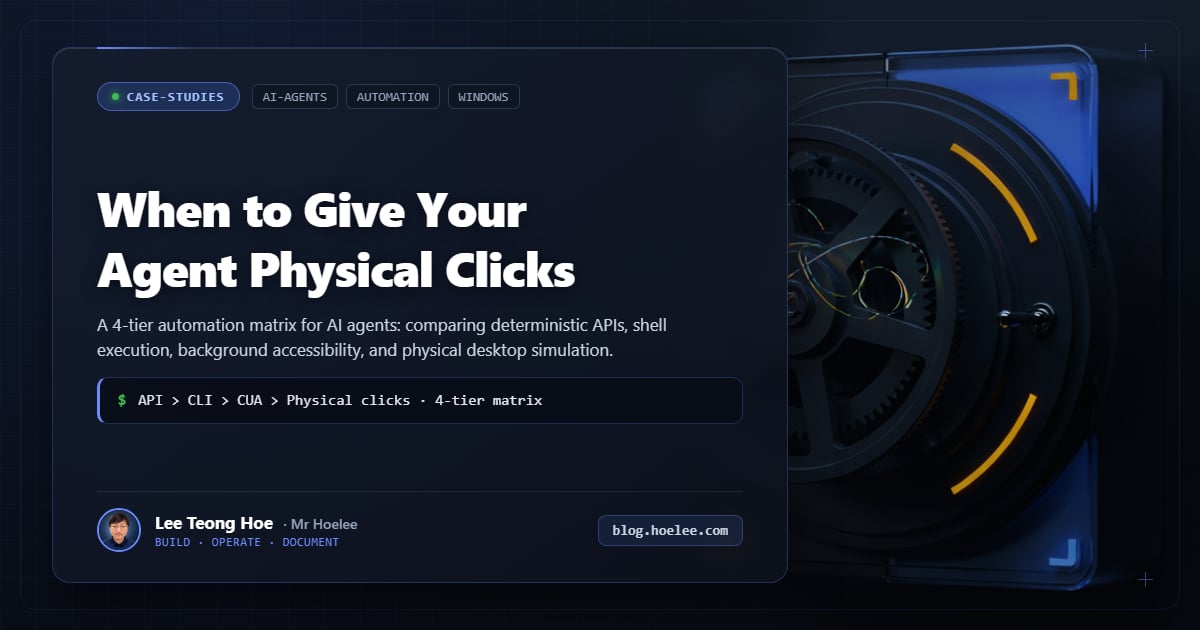
Giving an AI model direct control over your operating system’s mouse and keyboard sounds exciting in demos. An agent looks at your screen, clicks on buttons, types text, and automates repetitive tasks across desktop applications that never offered a REST API or a command-line interface.
Out of the box, it is an operational hazard.
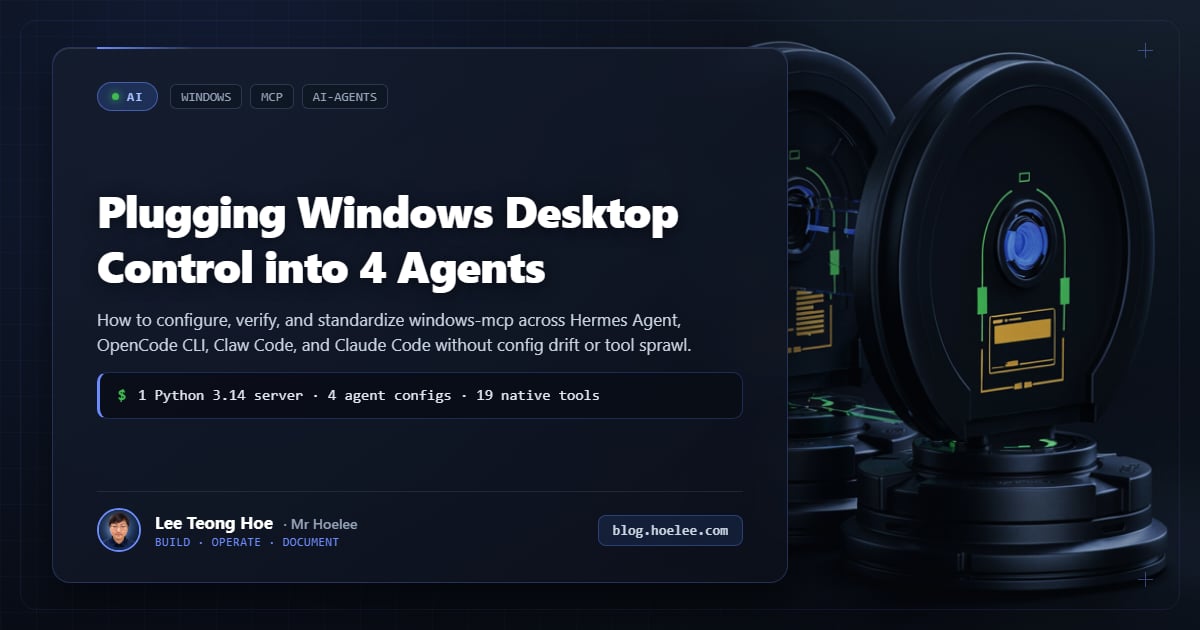
When I evaluated windows-mcp—a popular Model Context Protocol server bridging LLMs with Windows UI automation—I inspected its default tool manifest and execution policies. What I found was a suite of high-privilege capabilities exposed directly to the model with zero isolation.
Here are the four guardrails you must enforce before handing your desktop over to an autonomous agent.
1. Strip PowerShell and Registry Immediately
When an MCP server advertises UI automation, you expect mouse movement, keyboard shortcuts, window focusing, and screenshot extraction.
windows-mcp ships with 21 tools by default. Hidden among Click, Type, and Screenshot are two system-level execution tools:
PowerShell: Executes arbitrary PowerShell scripts directly on the host.Registry: Reads, writes, creates, and deletes Windows Registry keys and values.
An LLM asked to “fix an application that won’t launch” might hallucinate a registry fix from an outdated StackOverflow thread and overwrite crucial system keys under HKLM\SOFTWARE. Worse, prompt injection inside an untrusted document or web page could trick the agent into running arbitrary PowerShell commands behind your back.
The Fix
Never rely on prompt instructions to tell the model “please do not touch the registry.” Enforce it at the transport level with --exclude-tools:
uvx windows-mcp serve --exclude-tools "PowerShell,Registry"This reduces the exposed toolset to 19 strictly UI- and process-oriented tools. The LLM cannot call what the MCP server refuses to register.
2. Downscale Screenshots on High-DPI Displays
Modern Windows setups commonly run 2K (2560×1440), 4K, or multi-monitor configurations.
On my primary dual-monitor workstation (a 1080p secondary stacked above a 1440p primary display spanning a combined 2560×2520 virtual canvas), unscaled PNG screenshots clocked in at 2.8 MB. This immediately triggered hard failures:
- MCP Payload Limits: Many MCP clients (including Claude Desktop and CLI bridges) enforce a 1 MB tool-result size limit. A full unscaled canvas capture threw immediate
PayloadTooLargeerrors and dropped the turn. - Token Exhaustion: High-resolution image tokens saturate the context window rapidly, spiking inference costs and pushing previous conversation turns out of cache.
The Fix
Set the scale factor environment variable:
export WINDOWS_MCP_SCREENSHOT_SCALE="0.5"A 0.5 scale cuts pixel width and height in half, reducing image byte size by 75% (from 2.8 MB down to ~620 KB) without compromising element legibility.
Note on coordinate translation: When downscaling is active, the tool metadata reports Screenshot Coordinate Scale: 2.0. The LLM must multiply pixel coordinates read from the downscaled image by 2.0 when passing target locations to Click or Move.
3. Blacklist Complex Electron Processes (Issue #383)
windows-mcp provides two ways to inspect the desktop:
Screenshot: Fast visual capture without accessibility tree extraction.Snapshot: Deep UI accessibility inspection that dumps bounding boxes, element types, and control IDs.
If you call Snapshot while applications with deep DOM trees like VS Code (Code.exe) or Cursor (Cursor.exe) are open on screen, the Windows UIAutomation tree traversal can stall. The agent appears completely frozen for 30 to 60 seconds while traversing thousands of nested accessibility nodes.
The Fix
Blacklist complex IDE processes from tree traversal using the exclusion list:
export WINDOWS_MCP_EXCLUDE_PROCESSES="Code.exe,Cursor.exe"This instructs the traversal engine to skip heavy editor windows while continuing to extract controls from the target business applications.
4. Kill the Screen Flash and Telemetry
By default, every screenshot taken by windows-mcp renders an orange-red glowing rectangular flash around the captured screen area. While designed as a visual indicator for human observation, on rapid multi-step workflows this flashing creates constant visual distraction.
Furthermore, anonymous usage data is phoned home to PostHog by default.
The Fix
Silence the visual flash and telemetry via environment variables:
export WINDOWS_MCP_DISABLE_FLASH="1"
export ANONYMIZED_TELEMETRY="false"
The Complete Production Configuration
Here is the clean, hardened stdio configuration incorporating all four defenses:
{
  "command": "uvx",
  "args": [
    "windows-mcp",
    "serve",
    "--exclude-tools",
    "PowerShell,Registry"
  ],
  "env": {
    "WINDOWS_MCP_CONTROL": "false",
    "WINDOWS_MCP_SCREENSHOT_SCALE": "0.5",
    "WINDOWS_MCP_DISABLE_FLASH": "1",
    "WINDOWS_MCP_EXCLUDE_PROCESSES": "Code.exe,Cursor.exe",
    "ANONYMIZED_TELEMETRY": "false"
  }
}
Giving an AI agent physical input capability is a powerful tool for automating legacy systems, but it requires strict structural boundaries. Defend your host at the protocol layer, not the prompt layer.
Want a 24/7 bot or automation pipeline that never drops a lead?
Don't let customer inquiries slip away at midnight or on weekends. I build custom Telegram/WhatsApp AI assistants and deterministic workflows that connect directly to your catalogue, CRM, and order fulfillment.